Your public IP address is what websites, games, and APIs see when you connect. It differs from a private LAN address like 192.168.1.1.
The fastest method: open PINIP.net My Location — your IP, map, ISP, and ASN appear instantly with no install.
Step-by-step ways to find your public IPv4 or IPv6 address on Windows, macOS, Linux, iPhone, and Android — plus what websites see when you visit.
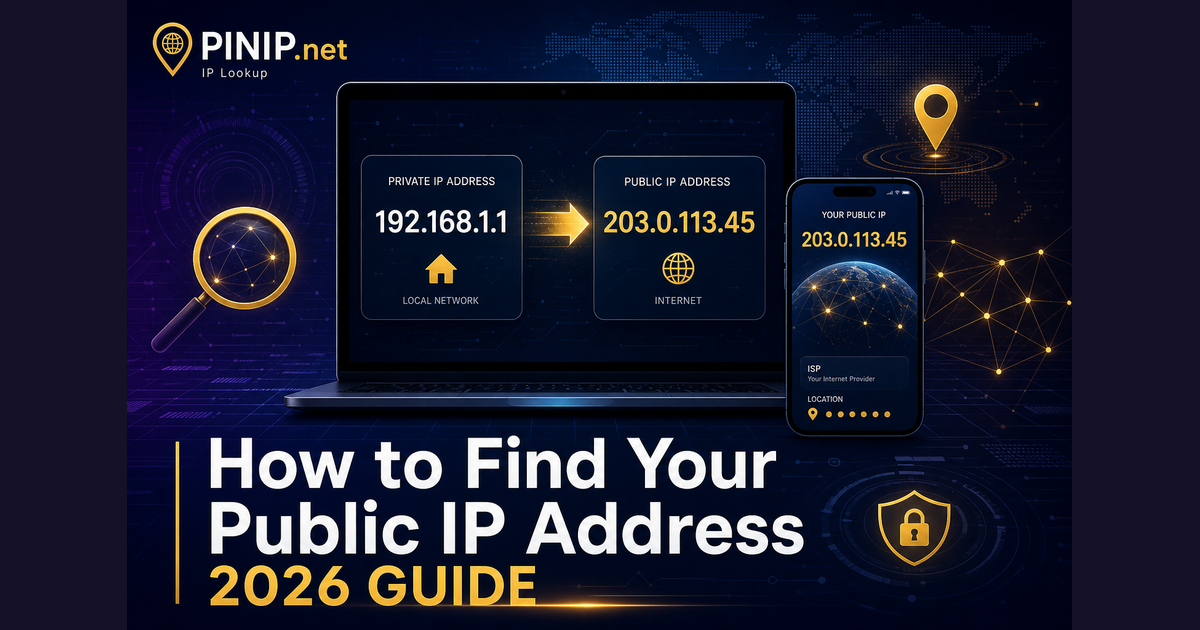
Your public IP address is what websites, games, and APIs see when you connect. It differs from a private LAN address like 192.168.1.1.
The fastest method: open PINIP.net My Location — your IP, map, ISP, and ASN appear instantly with no install.
Or run curl ifconfig.me in PowerShell for your public address.
System Settings → Network → select interface → details. For public IP, visit pinip.net or run curl ifconfig.me in Terminal.
Use ip addr for local interfaces. For public IP: curl -4 ifconfig.me or open our My Location page.
Mobile settings show Wi-Fi/local addresses only. Use a browser and open My Location on cellular data to see your carrier-assigned public IP.
Many networks are dual-stack. PINIP.net detects both — search either format in the bar or append to the URL: pinip.net/8.8.8.8.
Usually dynamic on home broadband. Datacenter and VPN IPs may be static or rotate per session.
No. IP geolocation is city/region level at best — see our accuracy guide.